


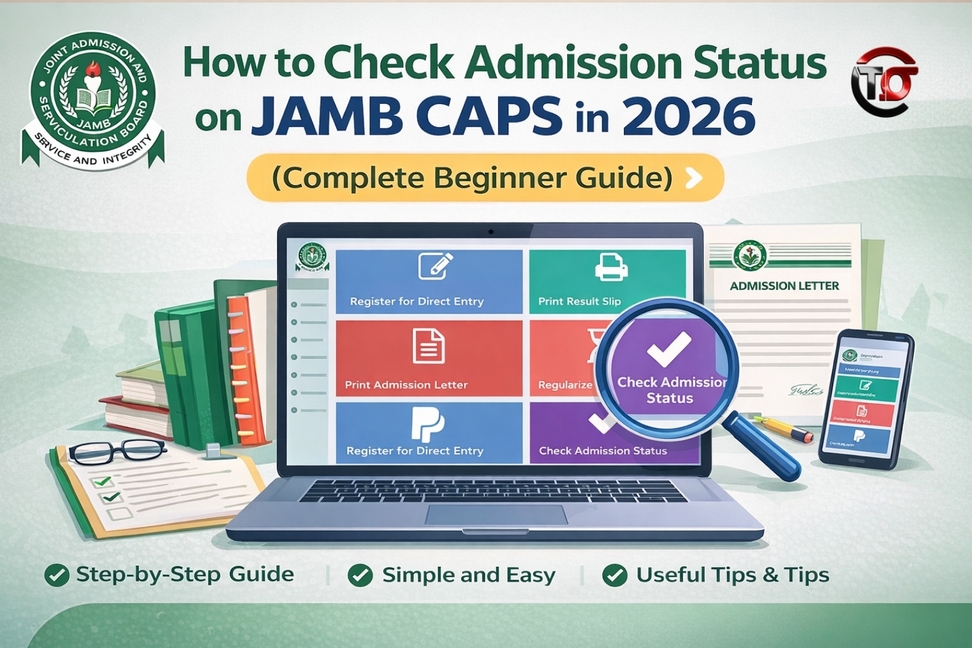

Getting admission into a Nigerian university is exciting, but many students get confused when it’s time to confirm their admission on JAMB CAPS. If you don’t check and accept your admission on time, you could lose it.
This guide will show you exactly how to check your admission status on JAMB CAPS step-by-step, even if you are using a phone.
CHECK IN..



What is JAMB CAPS?
JAMB CAPS (Central Admission Processing System) is the official platform created by JAMB to manage admissions into Nigerian universities, polytechnics, and colleges of education.
Through CAPS, you can:
- Check if you’ve been offered admission
- Accept or reject admission
- Monitor your admission progress
- See institutions that have considered you
Official JAMB CAPS Portal
- Use the official portal below to check your admission: https://efacility.jamb.gov.ng/
Always use the official link to avoid scams or fake websites.
Requirements Before You Check Your Admission Status
Before you begin, make sure you have:
- Your JAMB registration number
- Your JAMB login email and password
- A phone or computer with internet access
Step-by-Step Guide to Check Admission Status on JAMB CAPS
Follow these simple steps carefully:
Step 1: Visit the JAMB Portal
Go to the official JAMB eFacility portal:
https://efacility.jamb.gov.ng/
Step 2: Login to Your Profile
Enter your email and password, then click “Login.”
Step 3: Locate caps.
Once logged in, scroll down and click on “Check Admission Status.”
Step 4: Access CAPS
Click on “Access my CAPS.”
Step 5: Switch to Desktop Mode (For Phone Users)
If you’re using a phone, your browser may not display CAPS properly.
Click the three dots in your browser and select “Desktop site.”
Step 6: Open Admission Status Tab
Click on “Admission Status” on the left-hand side.
Step 7: Check Your Admission
You will see one of the following:
- Admission Offered
- Not Admitted
- Admission in Progress
If you have been offered admission, you will see options to
- Accept Admission
- Reject Admission
What to Do After Seeing Your Admission
If you are offered admission:
1. Accept Admission Immediately
Click “Accept” to secure your spot.
2. Print Your Admission Letter
After accepting, go back to the portal and print your JAMB admission letter.
3. Wait for School Updates
Your institution will also release its own admission list.
What Does “Admission in Progress” Mean?
This means:
- Your admission is still being processed.
- You should keep checking regularly.
No action is needed yet.
What If It Shows “Not Admitted”?
Don’t panic. It could mean:
- Your school has not uploaded your name yet.
- You may still be considered
Keep checking CAPS and your school portal.
Common Problems and Solutions
Problem: CAPS not showing properly
Solution: Switch to desktop mode on your browser.
Problem: Cannot log in
Solution: Reset your password using the “Forgot Password” option.
Problem: No admission yet
Solution: Be patient and check regularly.
Important Tips Every Student Should Know
- Always accept your admission on CAPS before your school deadline.
- Never share your JAMB login details with anyone.
- Check CAPS frequently during admission season
- Make sure your O’Level results are uploaded on the JAMB portal
Frequently Asked Questions
1. Can I accept admission by phone?
Yes, but you must switch to desktop mode.
2. Is JAMB CAPS free to use?
Yes, checking your admission status is free.
3. Can I reject admission?
Yes, but be careful. You may not get another offer.
4. How often should I check CAPS?
At least once every day during the admission period.
Final Thoughts
Checking your JAMB CAPS admission status is one of the most important steps in securing your admission. Many students miss their admission simply because they didn’t accept it on time.
Follow the steps in this guide carefully, use only the official portal, and stay updated regularly. If your admission is still pending, keep checking and stay hopeful.


